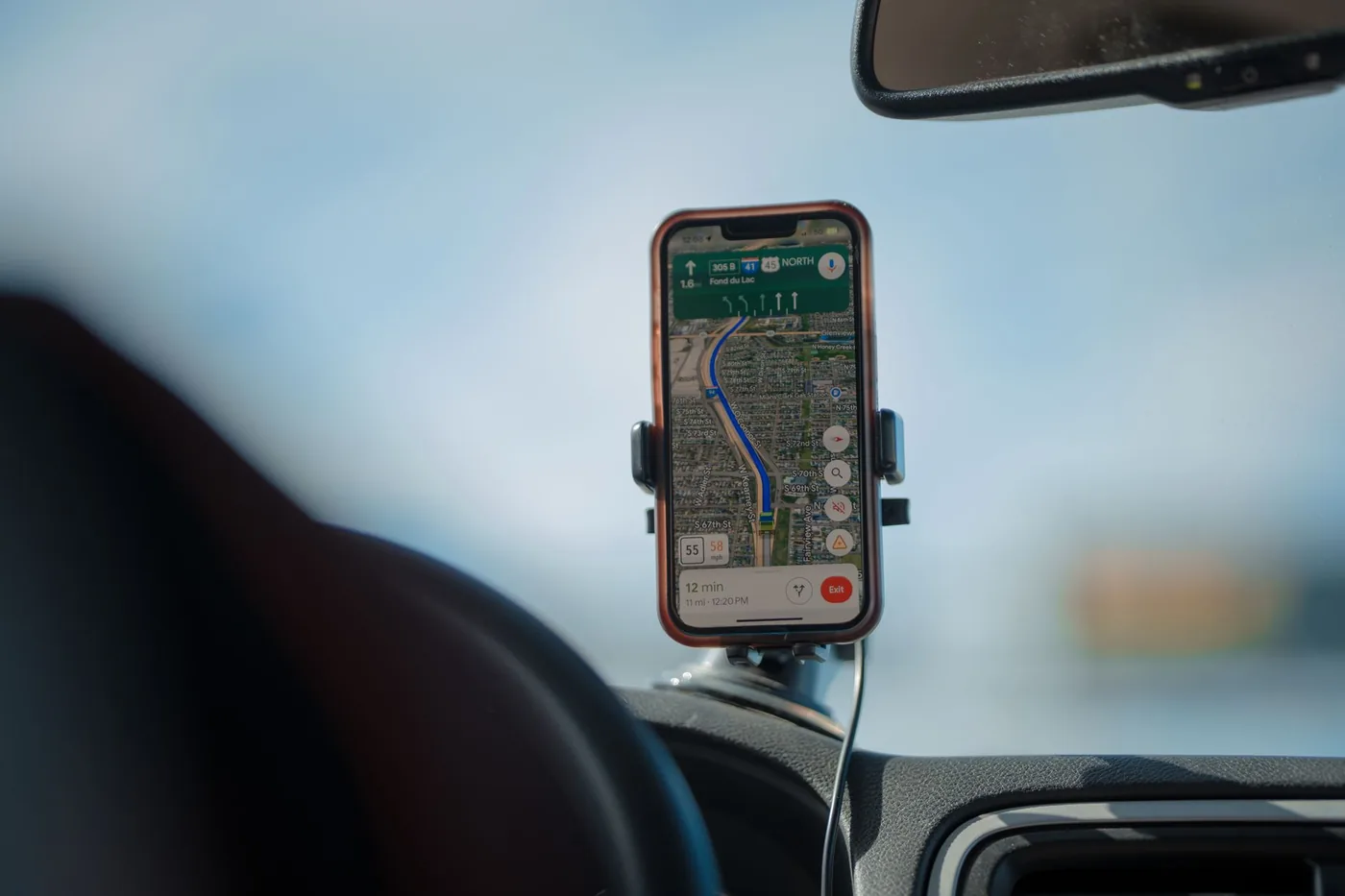
Google Maps usually sends you the one route it thinks is fastest — but there's almost always more than one way to get somewhere, and sometimes the alternate is better for avoiding traffic, tolls, or a stretch you dislike. Here's exactly how to see and choose alternate routes in Google Maps, plus a faster approach if you're checking the same commute every day.
How to find alternate routes on Google Maps (mobile)
- Open Google Maps and enter your destination in the search bar.
- Tap Directions. Your starting point defaults to your current location, which you can change.
- Look at the map. Google shows the recommended route as a solid blue line and any alternates as gray lines running alongside it.
- Tap a gray route to select it. It turns blue, and the estimated time updates so you can compare.
- Tap Start to navigate using the route you picked.
Google chooses which routes to suggest based on factors like distance, travel time, and number of turns. If no gray lines appear, there simply isn't a meaningfully different alternate for that trip at that moment.
How to find alternate routes on desktop
On the Google Maps website, search your destination, click Directions, and enter your start point. Suggested routes appear in the list and on the map; click any of them to select it and see its time and distance. You can also drag a point on the route to force a different path.
The catch for daily commuters
Here's the limitation: Google Maps shows you alternate routes once you've opened directions and are about to navigate. That's fine for a one-off trip. But if you drive the same commute every day, the useful question isn't "show me alternates right now" — it's "which route, and which departure time, is best today, before I leave?" Turn-by-turn navigation isn't designed to answer that from your kitchen.
A faster way to compare routes for your commute
This is where a commute-first app helps. Instead of opening navigation each morning, BoardSpy checks your saved routes before you leave, compares them, and tells you the fastest option and the best time to go — with weather along the way. When you set off, it opens your map app for turn-by-turn as usual. You get the route comparison in advance rather than discovering it once you're already driving. If you're weighing map apps generally, see our commute-first Waze alternative.
Frequently asked questions
How do I get alternate routes on Google Maps?
Enter your destination, tap Directions, and look for gray lines alongside the blue recommended route. Tap a gray line to select that alternate, then start navigation.
Why doesn't Google Maps show alternate routes for my trip?
Google only shows alternates when there's a meaningfully different route available. For short trips or roads with one clear best path, it may show just one route.
Can I compare routes before I leave instead of while driving?
Yes, with a commute-first app. BoardSpy checks and compares your regular routes before departure and tells you the fastest one and the best time to leave, rather than only showing alternates once you're navigating.
How does Google Maps decide which routes to suggest?
It weighs factors like distance, travel time, and number of turns to rank routes, then shows the lowest-"cost" option as the recommended route and others as alternates.